











When using rotating residential proxies, those new to web scraping, data collection, or multi-account management often get confused by two terms: Sticky Sessions and Per-request Rotation. Although they use the same IP pool, their connection and IP switching mechanisms are completely different. Choosing the wrong mode can not only get your scraper blocked or cause data collection to fail, but may also trigger risk controls on cross-border e-commerce accounts.
This article breaks down the underlying principles of three rotating IP switching modes and focuses on the three ways to switch IPs rotatingally.
I. Three Session Strategies for IP Switching: How They Work and When to Use Them
Depending on your business needs, IPFoxy supports the following three main IP switching mechanisms:
1. Sticky Session Switching
The system keeps the same IP for a set period (such as 30 or 60 minutes). When the countdown ends or the current node goes offline, the system automatically assigns and switches to a new IP.
Best for:
- Maintaining login sessions: Websites that are friendly to cookies and sessions are less likely to force a logout when the IP remains stable, making this suitable for account management and login scenarios on platforms such as Amazon, Shopee, and eBay.
- Simulating real user behavior: Real users do not typically switch IPs every few seconds while browsing. Keeping a consistent IP can reduce the likelihood of triggering risk controls, especially for scraping tasks that require login or CAPTCHA verification.
- Supporting multi-step interactions: Ideal for workflows that require continuous context, such as “Login → Verify → Search → Export Data,” including certain survey flows, shopping cart actions, and multi-step form submissions.
2. Per-Request Rotation
With no manual intervention required, the proxy gateway automatically selects and assigns a brand-new IP from a large IP pool for every HTTP/HTTPS request you send.
Best for stateless tasks that do not require a persistent login session, such as
- Large-scale scraping of public data, such as e-commerce product prices, product reviews, and news articles.
- SERP keyword ranking monitoring.
- Real-time price monitoring and competitor analysis, including rotating hotel and airfare pricing.
3. Manual Switching
During a sticky session, you do not need to wait for the countdown to end. You can send a command to the gateway through an API, plugin, or code to force an IP change within milliseconds.
Best for situations where access suddenly becomes abnormal or a CAPTCHA blocks the request during a sticky session, or when you need to switch to a new environment immediately after completing a specific step.
- Handling unexpected risk controls and CAPTCHA blocks: If an IP unexpectedly triggers a target site’s Rate Limit, displays a CAPTCHA, or returns a 403/429 error during a sticky session, you can immediately switch IPs and resume scraping without waiting for the timer to expire.
- Isolating individual tasks/workflow steps: In an automated script, trigger an IP change after each independent task unit is completed (such as successfully submitting a survey or finishing LinkedIn data collection for a single account) to keep environments isolated between tasks.
- Diagnosing node quality and troubleshooting quickly: When the current residential node has high latency, unstable connectivity, or timeouts, manually or programmatically trigger an IP change to quickly connect to a faster, higher-quality node.
II. How to Quickly Configure and Extract Rotating Proxy Lines in IPFoxy
Extracting rotating residential proxies from the IPFoxy dashboard takes just four steps:
Step 1: Log in to the dashboard:
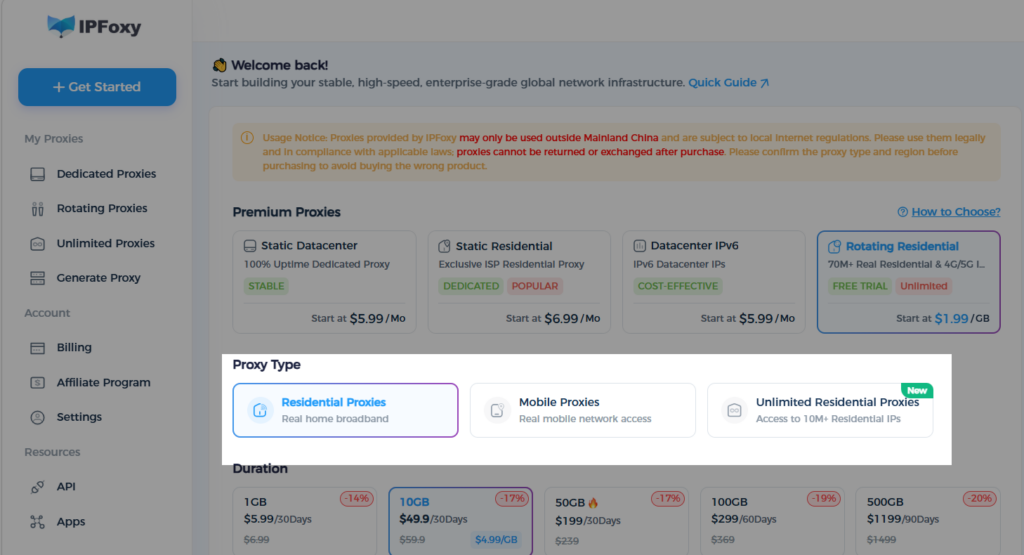
Purchase 【rotating Residential Proxies】 in IPFoxy, select the desired rotating IP type, then click “Extract rotating Proxy” in the left navigation bar.
Step 2: Choose your target location:
Select the target country, state, or city based on your business needs. IPFoxy supports precise targeting or random location selection, which must be configured in advance.
Step 3: Select the session type and duration
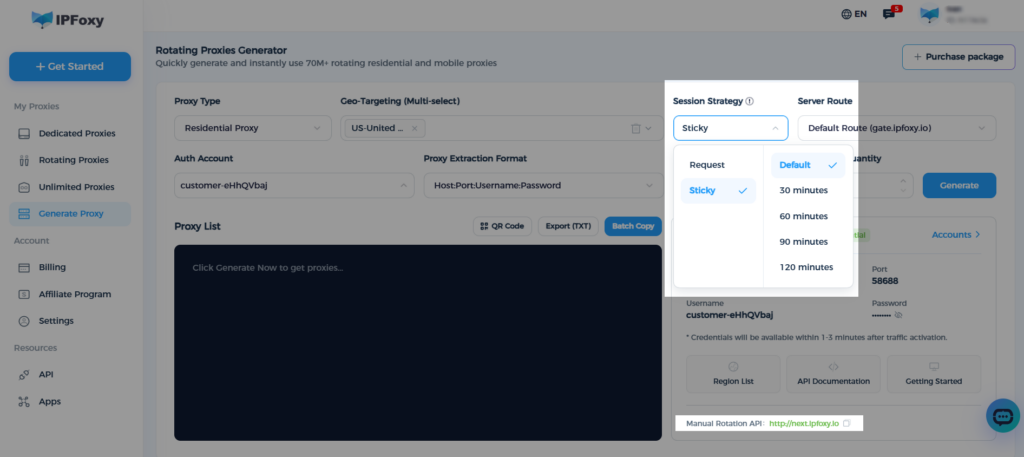
- If you want the IP to change with every request, select 【Per Request】 as the session type.
- If you want the IP to remain unchanged for a set period, select 【Sticky】 and set the desired rotation duration. Custom durations from 30 to 120 minutes are supported.
Only one mode can be selected for each generated proxy line. If you need to switch IPs manually while using Sticky mode, you can get the manual IP switching API URL directly from the bottom-right corner of the interface. The next section explains the three manual switching methods in detail.
Step 4: Generate and copy the proxy details
After configuring the above settings, along with the extraction quantity and mode, click Generate to obtain the proxy details, including the proxy host, port, username, and password. These credentials can then be configured in scripts, fingerprint browsers, and other supported environments.
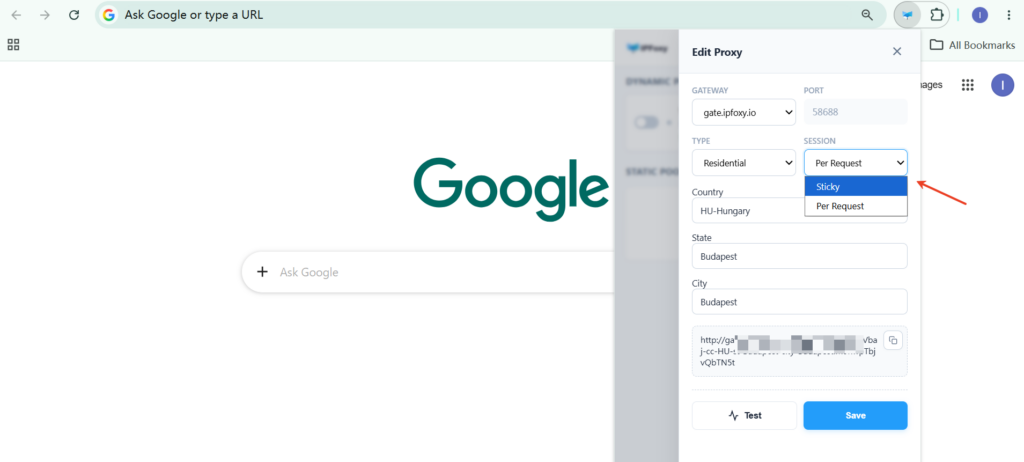
If you manage proxies with the IPFoxy Proxy Manager extension, no additional configuration is required. Simply configure the rotating IP parameters directly in the extension.
III. How to Switch IP Addresses with IPFoxy Session Rotation Strategies
In real-world use, the switching procedures and configurations for the three methods above are as follows:
1. Sticky Session Switching
- When extracting proxies, select the “Sticky” session and choose your desired rotation duration (such as 30, 60, or 120 minutes).
- Copy the generated proxy connection details into your configuration environment. The system will automatically switch to a new IP when the selected duration expires.
- To start a completely new sticky session, you need to generate a new rotating proxy line.
2. Per-Request Automatic Rotation
- When extracting a proxy line in the dashboard, set the session type to “Per Request.”
- Get the proxy host and port and configure them once in your scraper or fingerprint browser.
- For every subsequent Request, the gateway automatically selects and replaces the IP, with no need to modify your configuration or send additional commands.
3. Manual Switching
When you are in a sticky session but need to force an immediate IP change, you can call the IP switching API in several ways to switch within seconds. Here are three examples:
Scenario 1: Switch directly via the API URL
In an environment where the IPFoxy proxy has already been configured (such as a browser connected through the proxy), directly access the dedicated IP switching API URL:
Request URL: http://next.ipfoxy.io
Action: Open or request this URL directly from the proxy-configured environment. Once the gateway receives the request, it will redirect the current connection to a new IP.
Scenario 2: One-click switching via the extension
For users managing IPs with the IPFoxy Proxy Manager extension, simply click the switch button in the rotating proxy row to change the IP immediately.
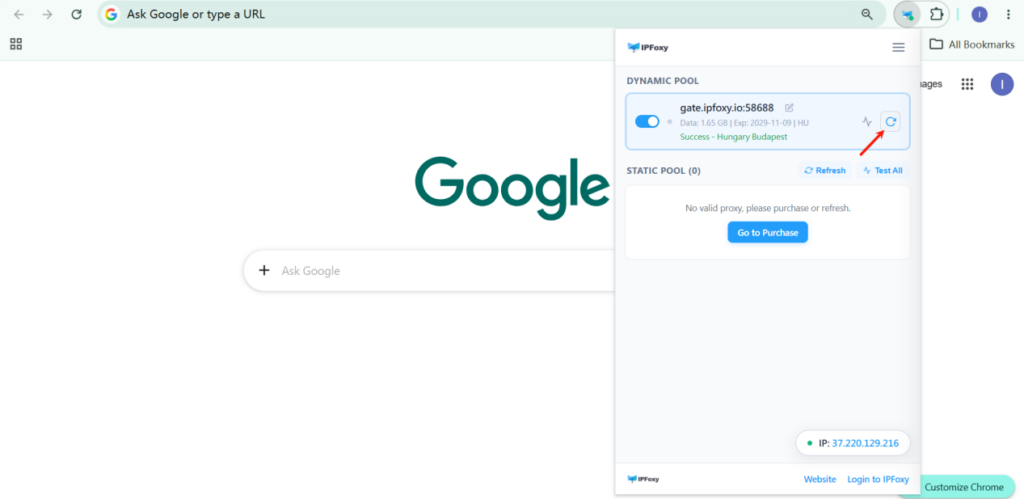
Scenario 3: Switch IP through front-end client code
In a web front end or client, if an abnormal response status code (such as 403/429) is detected, you can call the switching API through code to silently change the IP. Example:
With the configurations and procedures above, you can choose the IP switching strategy that best fits your business needs, maintaining data collection efficiency while effectively reducing the impact of various risk-control restrictions.
IV. Frequently Asked Questions (FAQ)
The better option depends on the specific use case. For large-scale public data scraping and SERP monitoring, Per-Request Rotation is generally more effective because each request receives a different IP, making it harder for the target site to apply rate limits to a single IP. For e-commerce account management, social media operations, and data collection that requires login, Sticky Sessions are generally a better fit. Frequent IP changes can trigger unusual-login risk controls and CAPTCHAs, while a fixed-duration sticky IP more closely resembles typical user behavior.
No. The manual switching API (http://next.ipfoxy.io) works at the gateway level. Your proxy port, username, and password remain unchanged; the backend simply binds the session to a new residential IP.
There is no need to. In “Per Request” mode, your next HTTP request will automatically use a brand-new IP, so there is no reason to call the manual switching API separately.
V. Final Thoughts
Rotating IP switching is not about changing IPs as frequently as possible, nor is keeping an IP stable always the safest option—the key is choosing the right strategy for the job. By now, you should have a clear understanding of IPFoxy’s three core switching modes for rotating residential proxies:
- Sticky Sessions: Ideal for logged-in sessions and multi-step interactions, helping simulate real user behavior and reduce false risk-control triggers;
- Per-Request Rotation: Ideal for high-concurrency public data collection, reducing reliance on a single IP and its rate limits;
- Manual Switching: Provides the flexibility to respond quickly to unexpected blocks or node issues, allowing you to switch IPs whenever needed.